Map / Your team / The city
City at a Glance
Open the city.
Find your people.
A whole city is easier to read when you can look closer. City at a Glance brings a larger map, direct zoom controls and a clearer view of the people on your side, with quick routes back to you and your next objective.
01 / A clearer overview
The map belongs within reach.
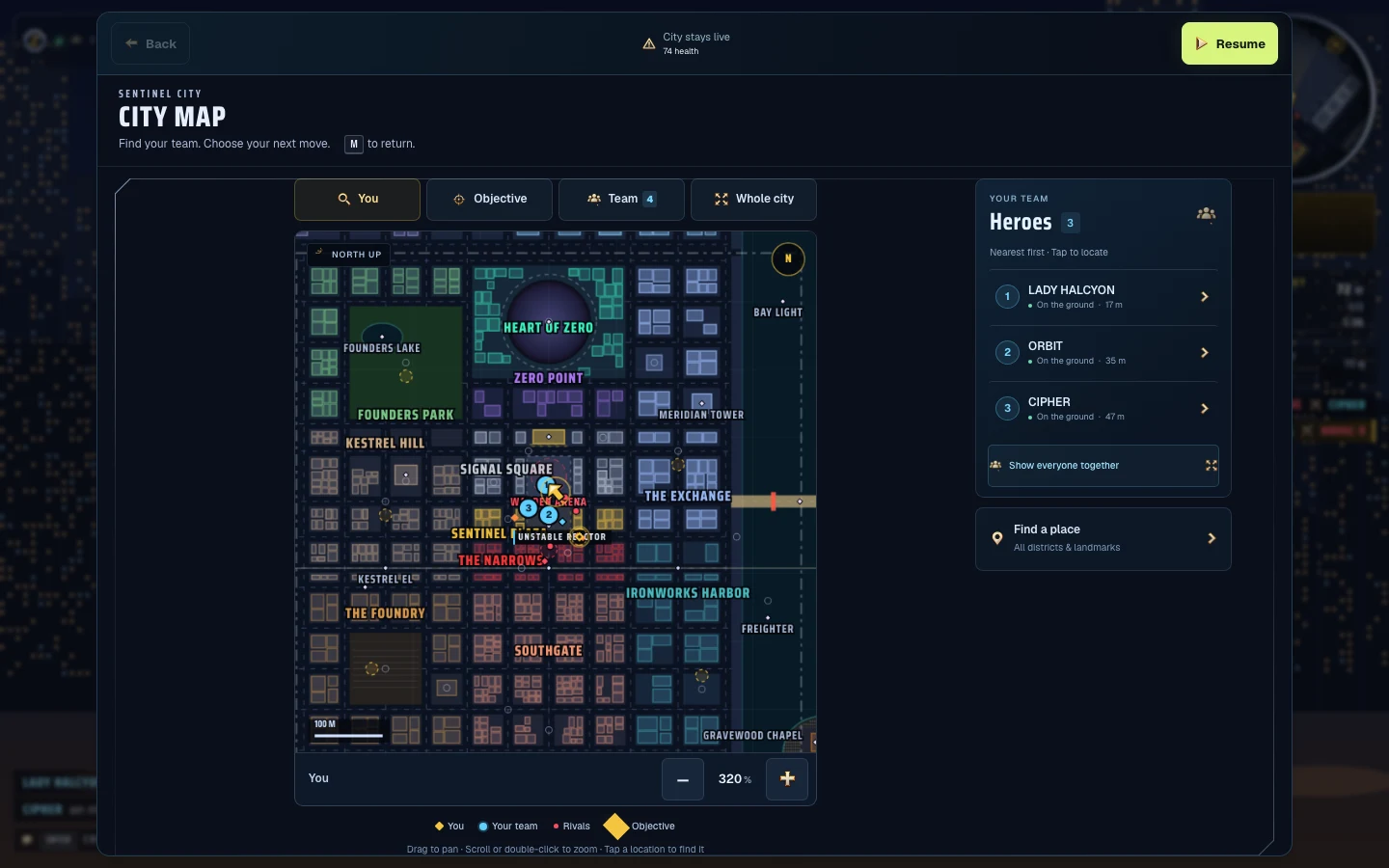
Tap Map. Click the minimap. Press M. The expanded atlas opens with room for the streets, the places around you and the next decision. You, Objective, Team and Whole city keep the most useful views close, while the layout makes room for fingers on smaller screens.
A continuous recording of the actual local solo game shows opening the city atlas, zooming, panning and finding city destinations with ordinary controls. No game-state injection or teleport is used. The full interface and native elapsed time are retained. The clip is silent. Team roster screenshots elsewhere in this story use a separately disclosed deterministic UI preview fixture. Browser capture does not establish physical-device performance.
02 / Keep your side in sight
Names. Numbers. Your people.
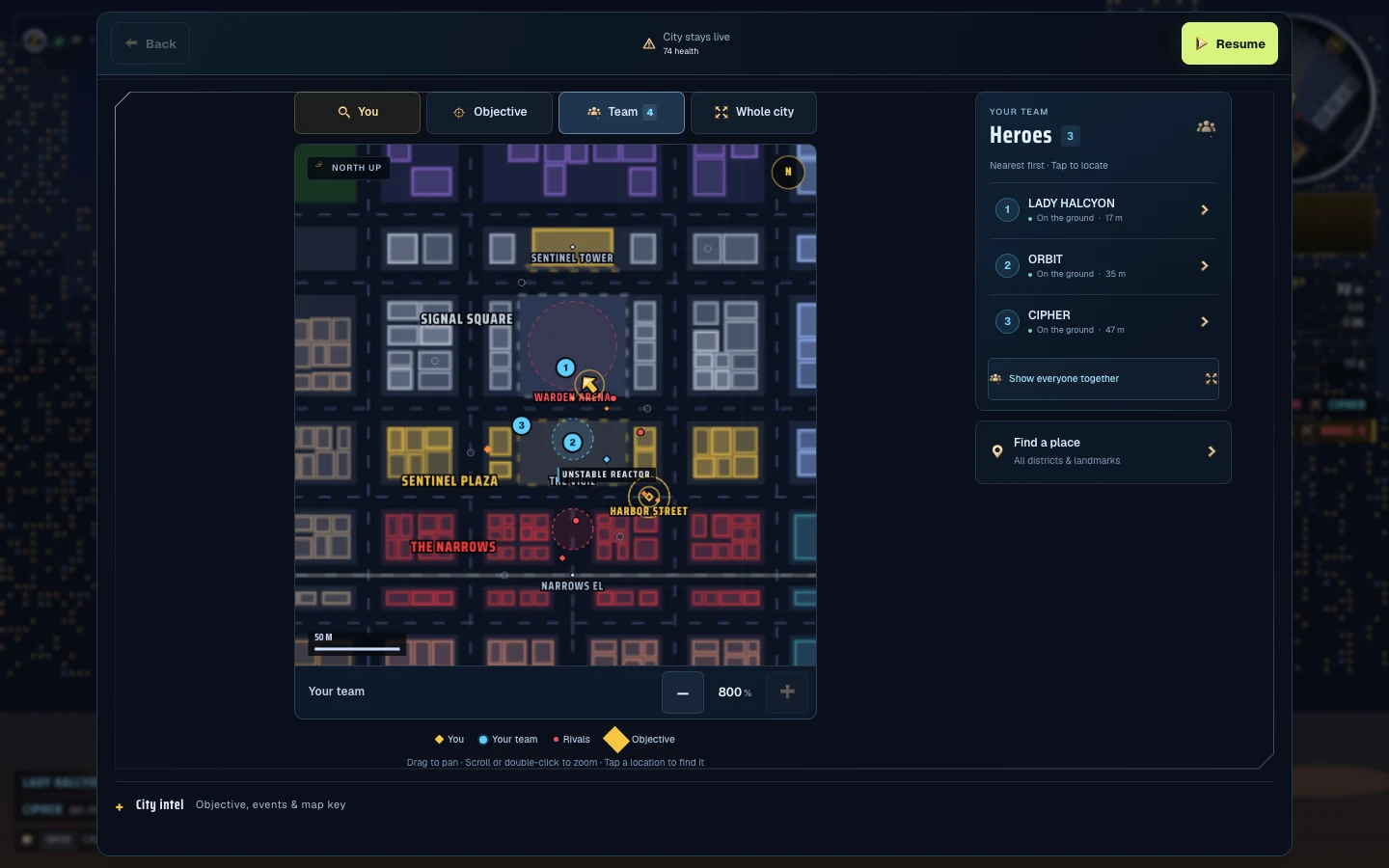
If you are a hero, your roster shows heroes. If you are a villain, it shows villains. Living teammates appear nearest first, with names, distance and status beside a number that matches their cyan marker. Tap a name to find that player, or fit everyone together with Team. Edge markers keep teammates in view when the street you are studying is somewhere else.
03 / Move through the map
A closer look. Right there.
Scroll over the place you want to inspect. Double-click to step closer, or spread two fingers on touch screens. Drag to follow a street, use the visible zoom buttons, or search districts and landmarks in Find a place. You brings the view home. Objective puts the next destination in focus. Whole city opens the view back out.
The details
Everything in v0.49.
The city is one action away
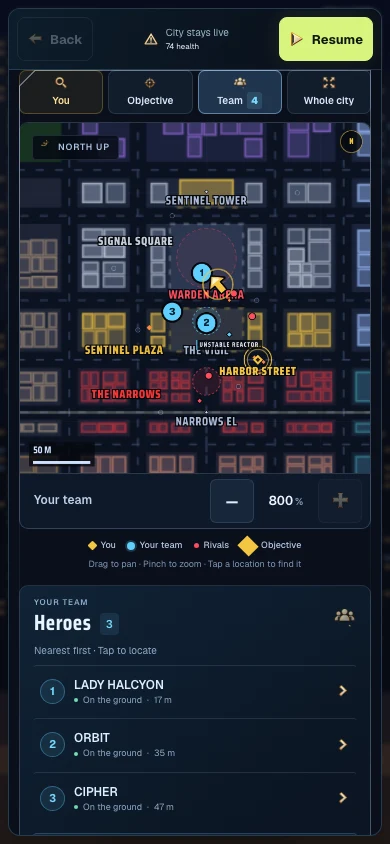
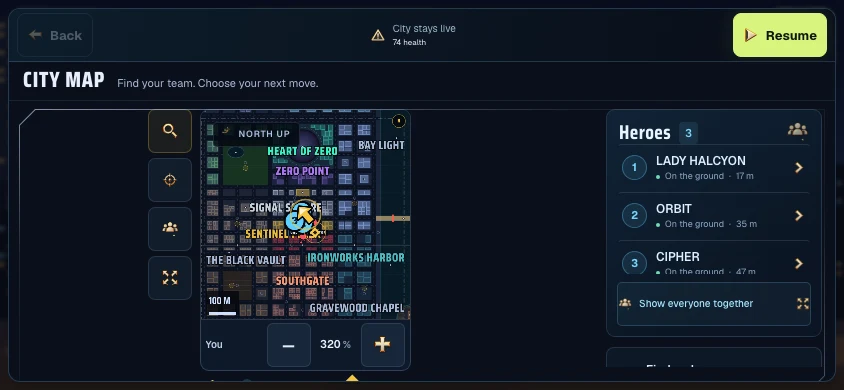
Open the expanded map from the Map button, the minimap or M. A larger atlas gives the streets room to breathe, with layouts that adapt to desktop, portrait phones and short landscape screens. Close it and return to the game.
Look closer where it matters
Drag to pan. Scroll or double-click over a place to zoom toward it, or pinch with two fingers on touch screens. Visible plus and minus buttons show the current zoom. You returns to your position, Objective finds your destination, and Whole city restores the full atlas. With the map focused, arrow keys pan, plus and minus zoom, and Home returns to you.
Find the people on your side
Heroes see living heroes. Villains see living villains. A nearest-first roster connects player names, status and distance to numbered cyan markers on the map. Select a teammate to locate them, or choose Team to fit your whole side together. Teammates outside the map view have edge markers; rivals remain distinct red dots. Disconnected players carry a visible status.
A place to go
Open Find a place and search districts and landmarks by name. Select a result to move the map to it at a useful scale. Your objective has its own shortcut, and strongholds have a separate list. A clear north-up view, legend and scale help keep your bearings.